

Fintoc via Widget
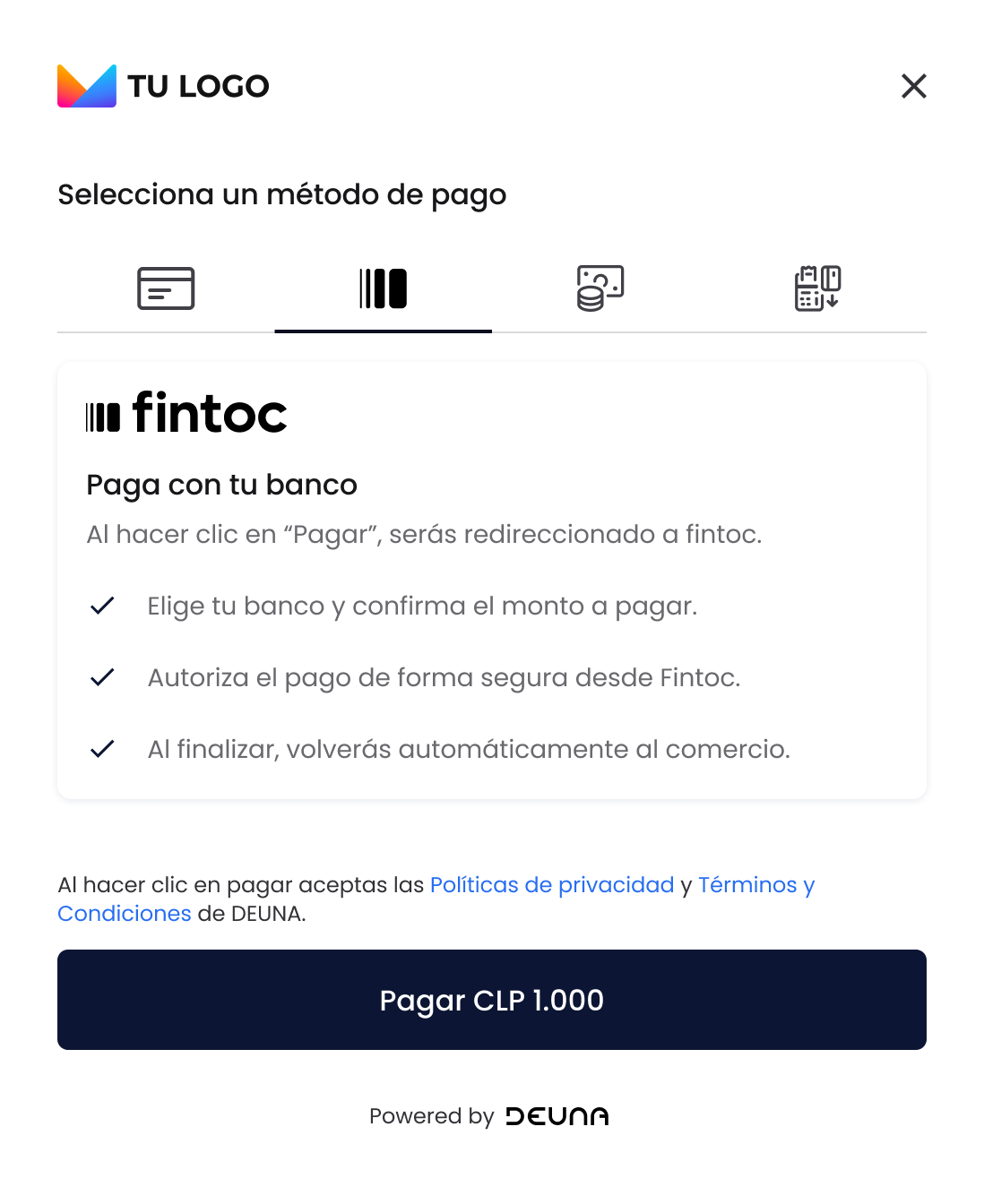
This section explains how to integrate Fintoc using DEUNA's Payment Widget. The user is redirected to Fintoc's hosted page to log in to their bank and authorize the payment, while DEUNA resolves the final status via polling and webhooks.
Prerequisites
Before implementing Fintoc payments, ensure you have:
- Enabled Fintoc in the DEUNA Admin Panel. Add Fintoc under Connections with your
Secret API Key,Public API Key, merchant name and currency (CLP). See Fintoc. - A generated order token in
CLP. - The DEUNA SDK integrated in your project.
- Reviewed the Payment Widget documentation for your platform.
Payment Method configuration
Display the Payment Widget by passing the Fintoc configuration in the paymentMethods parameter.
[
  {
    "paymentMethod": "bank_transfer",
    "processors": ["fintoc"]
  }
]
Payment Widget — Web
DeunaSDK.initPaymentWidget({
  orderToken: 'YOUR_ORDER_TOKEN',
  paymentMethods: [
    {
      paymentMethod: 'bank_transfer',
      processors: ['fintoc'],
    },
  ],
  callbacks: { ... },
});
Payment Widget — Android
// MODAL
deunaSDK.initPaymentWidget(
    context = context,
    orderToken = orderToken,
    callbacks = PaymentWidgetCallbacks().apply { ... },
    paymentMethods = listOf(
        mapOf(
            "paymentMethod" to "bank_transfer",
            "processors" to listOf("fintoc")
        )
    )
)

/// EMBEDDED
PaymentWidgetConfiguration(
    orderToken = orderToken,
    paymentMethods = listOf(
        mapOf(
            "paymentMethod" to "bank_transfer",
            "processors" to listOf("fintoc")
        )
    ),
    callbacks = PaymentWidgetCallbacks().apply { ... }
)
Payment Widget — iOS
/// MODAL
deunaSDK.initPaymentWidget(
  orderToken: "<DEUNA order token>",
  userToken: ..., // optional
  styleFile: ..., // optional
  callbacks: ...,
  paymentMethods: [
    [
      "paymentMethod": "bank_transfer",
      "processors": ["fintoc"]
    ]
  ]
)

// EMBEDDED
DeunaWidget(
  deunaSDK: deunaSDK,
  configuration: PaymentWidgetConfiguration(
    orderToken: "YOUR_ORDER_TOKEN",
    callbacks: PaymentWidgetCallbacks(
      onSuccess: { order in },
      onError: { error in },
      onEventDispatch: { event, data in }
    ),
    paymentMethods: [
      [
        "paymentMethod": "bank_transfer",
        "processors": ["fintoc"]
      ]
    ]
  )
)
Payment Widget — React Native
deunaSDK.initPaymentWidget({
  orderToken: 'YOUR_ORDER_TOKEN',
  paymentMethods: [
    {
      paymentMethod: 'bank_transfer',
      processors: ['fintoc'],
    },
  ],
  callbacks: { ... },
});
Customization
The Fintoc screens support the standard widget customizations through CustomStyle:
- Merchant logo
- Payment method selector title
- Powered by DEUNA
The branding displayed inside Fintoc's hosted page is controlled by Fintoc and cannot be customized through DEUNA.
See Customize the UI/UX of widgets using CustomStyles.
Testing
Use the Fintoc sandbox credentials:
| Parameter | Value |
|---|---|
| RUT | 41.579.263-8 |
| Online banking password | jonsnow |
| SMS verification code | 0000 |
| Currency | CLP |
| Environment | https://api.sandbox.deuna.io |
Limitations
- Available in Chile only.
- Supports CLP only.
- The shopper must hold an active account with a bank supported by Fintoc.
- Recurring payments are not supported in this flow.
Updated 21 days ago
Did this page help you?