

Elavon
Elavon is a leading global payment processor that provides secure, reliable transaction processing for businesses of all sizes.
Supported operations
Elavon integration in your payment strategy with DEUNA allows you to perform the following operations:
| Operation | Elavon Name | MTI Request / Response |
|---|---|---|
| Authorization | Pre Authorization | 1100/ 1110 |
| Purchase (Auto Capture) | Sale | 1200 / 1210 |
| Full Refund-Next day / Partial Refund | Refund | Offline request |
| Full / Partial Capture | Capture | Offline request |
| Full Refund-Same day | Sale Reversal | 1420 / 1430 |
| Void | Pre Authorization Reversal | 1420 / 1430 |
Supported features
- 3DS (Deuna's or External MPI)
- Installments
- MOTO
- Airline Information
Multiple partial captures and refunds can be enabled through configuration. Contact DEUNA to activate these features
Supported payment methods
- Debit and Credit Cards: Visa, Mastercard, AMEX, JCB, Diners, Discover, Maestro.
Settlement Process
Elavon integration requires a two-step process to offer a more reliable and efficient reconciliation process. Instead of clearing every single transaction one by one in real-time, all approved authorizations are grouped and sent together at the end of the day in a single batch file. This makes daily accounting, auditing, and error-checking significantly more manageable. The cut-off happens at 11:00 PM CDMX time.
This process is reflected in the payment status in Deuna as explained in the following table:
| Operation | Elavon Name | MTI Request / Response | Deuna Status Pre Settlement | Deuna Status after Settlement |
|---|---|---|---|---|
| Authorization | Pre Authorization | 1100/ 1110 | Authorized | Authorized (no change) |
| Purchase (Auto Capture) | Sale | 1200 / 1210 | Processing | Processed |
| Full Refund-Next day / Partial Refund | Refund | N/A | Refunding / Partial Refunding | Refunded / Partial Refunded |
| Full / Partial Capture | Capture | N/A | Capturing / Partial Capturing | Captured / Partial Captured |
| Full Refund-Same day | Sale Reversal | 1420 / 1430 | Refunded | Refunded (no change, online cancellation) |
| Void | Pre Authorization Reversal | 1420 / 1430 | Voided | Voided (no change, online cancellation) |
Supported Operations by Country
Integrate Elavon
As a payment and fraud orchestrator, our platform allows you to easily connect your Elavon merchant account directly into your payment flow. This enables you to leverage Elavon's processing capabilities as part of a sophisticated, rules-based payment strategy, helping you optimize acceptance rates and reduce costs.
This guide will walk you through the credentials needed to connect Elavon in our Admin.
Requisites
Before you can configure Elavon in our Admin, you must have an active merchant account with them. During your onboarding, Elavon will provide you with a set of unique credentials for your direct ISO integration.
Please gather the following required fields from your Elavon integration manager or welcome documents:
-
MID (Merchant ID): Your unique 10-digit identifier for your merchant account. Example:
0123401234 -
TID (Full Terminal ID): It is composed by the MID (10 digits) plus additional two or three digits, these two or three digits will be used in Deuna’s configuration with the name “Terminal ID”.
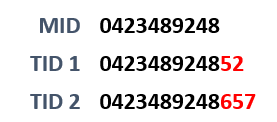
The way to enter this information into Deuna is explained in the table below
Configuration Steps
Connecting Elavon is a simple, one-time setup in our Admin portal.
-
Log in to your Admin portal.
-
Go to Connections.
-
Search for Elavon and click Connect
-
A form will appear. Enter the following information and credentials:
| Name | Detail | Source |
|---|---|---|
| Card Acceptor Merchant ID (MID) | Merchant 10-digit ID | Elavon |
| Acquiring Institution ID Code | Acquiring Institution 11-digit code | Deuna |
| Application ID | Use “42DUWITT” or "42DUWMTT" for MOTO Transactions, unless Elavon or Deuna advices a different value. | Constant |
| Terminal ID | 8-digit value obtained from the TID (12-13 digit code provided by Elavon). a. Staring with the TID , identify the 2-3 digits to the right of the MID: -MID: 0423489248 (10 digits) -TID example 1: 042348924852 (12 digits) -TID example 2: 0423489248657 (13 digits) b. Add 0s to the left until complete 8 digits, enter it as the Terminal ID value: -TID example 1: 042348924852 -> 00000052-TID example 2: 0423489248657 -> 00000657 | Elavon |
| Mastercard Merchant Payment Gateway ID (MPG ID) | Provided by Deuna. | Deuna |
| Point of sale (POS) data code | Use “100050100000” or "100030100000" unless Elavon or Deuna advices a different value. | Constant |
| Service Location City Name | The city where the services are provided or the merchant is registered. | Merchant |
| Service Location Country Code (3 numeric digits) | The country where the services are provided or the merchant is registered, in 3 numeric digit format. Please refer to https://www.iban.com/country-codes to find the required country code. | Merchant |
| Service Location Postal Code (e.g "11510") | The Postal Code where the services are provided or the merchant is registered. | Merchant |
| Elavon Journey ID | Left it empty unless Elavon or Deuna advices a different value. | N/A |
| Free Trial and Offer Indicator | Left it empty unless Elavon or Deuna advices a different value. | N/A |
| Industry Specific Transaction Indicator | Left it empty unless Elavon or Deuna advices a different value. | N/A |
| Merchant Name (e.g. "Deuna") | Merchant commercial name. | Merchant |
| Merchant City Name (e.g. "Miami") | The city where the merchant is registered. | Merchant |
| Merchant Country Code / State Code (e.g. “TX”, “TO”) | If the country is US or CA, provide the state code according to ISO 3166-2. If the country is not US or CA, provide the country code according to ISO 3166-1. | Merchant |
| Settlement (true/false) | Select the checkbox. | Constant |
- Select if you want this connection in a Sale (Purchase) or Pre Authorization (Authorization) mode.
- If required, you can enable our 3DS MPI to secure transactions with Elavon following this guide.
- Click "Save".
- Our system will validate the credentials, and Elavon will appear as "Active" in your list of connected processors.
Add Elavon to your transaction flow
Your Elavon connection is now active!
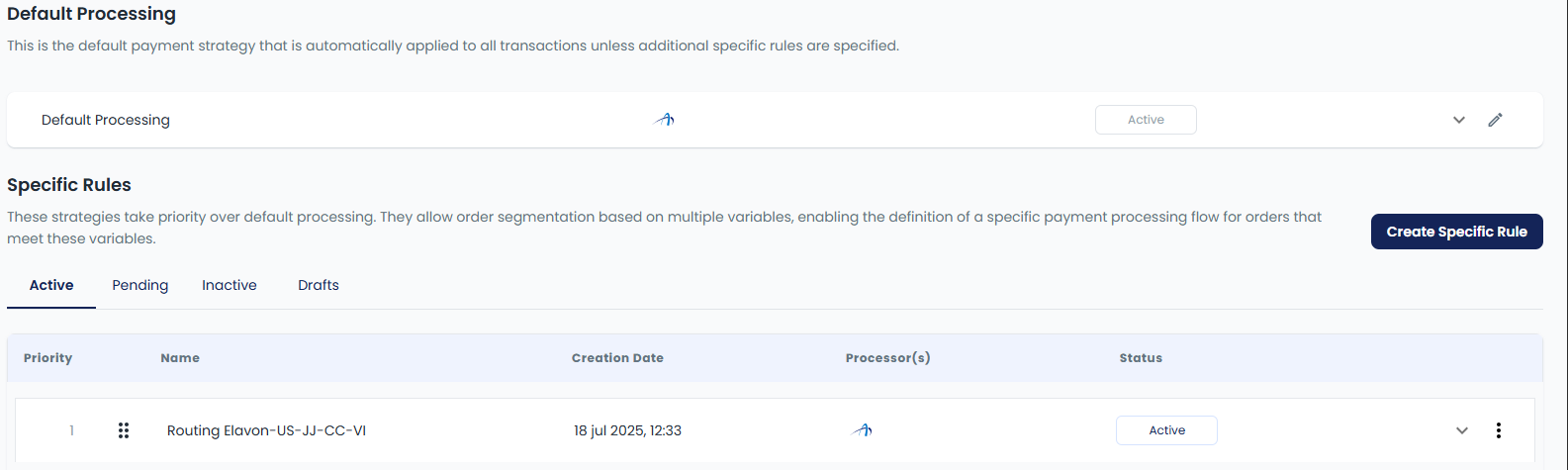
Go to the Payment Strategy section of the Admin to build rules that define which transactions are routed to Elavon.
Process MOTO transactions
In order to process MOTO transactions, a new connection should be created with specific values:
- MerchantID and TID: To be provided by Elavon for MOTO transactions
- Application ID: "
42DUWMTT" - Point of sale (POS) data code: "
100030100000"
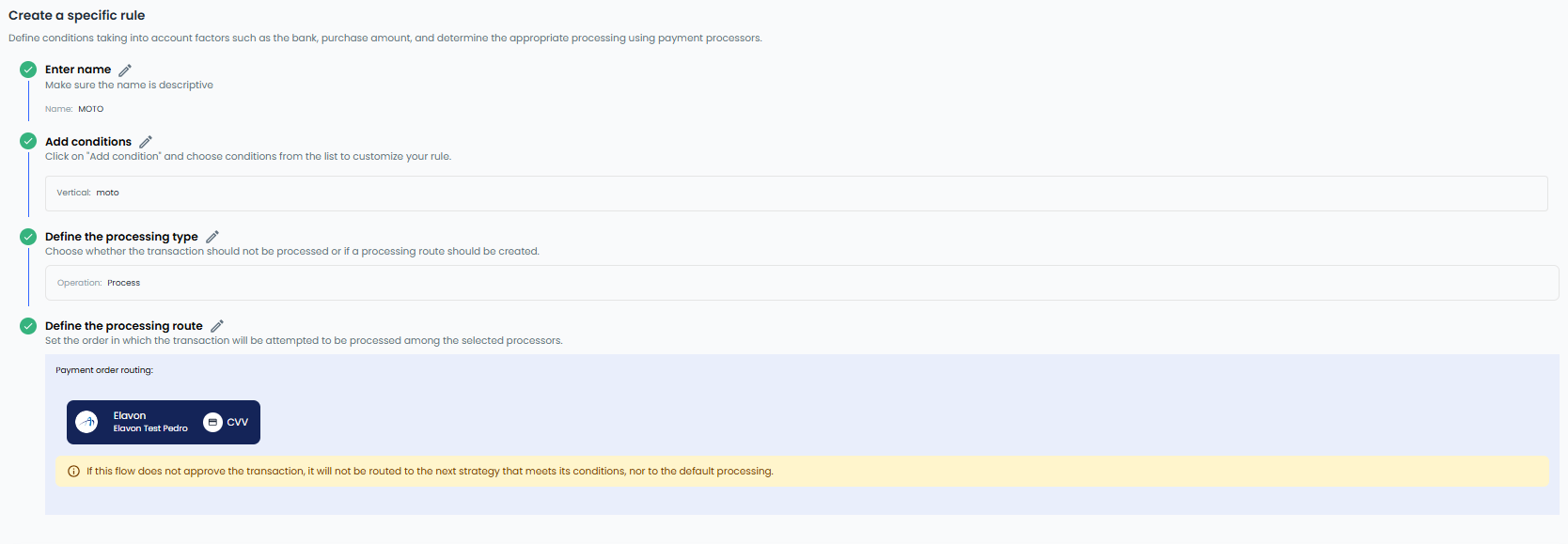
Consequently, a payment strategy must be created to process MOTO transactions ("order.market_type": "moto") using the MOTO connection, with the following steps:
- Create a specific rule inside Payment Strategies
- Name the strategy as desired (e.g. "moto")
- Add conditions, select "vertical", select "equal to" and enter "moto" and save.
- Proceed to create the payment strategy and select the Moto connection previously created as payment processor. It is important to disable 3DS in this option.
Technical Details: ISO 8583 Authorization
Our direct integration with Elavon uses the ISO 8583 financial messaging standard for high-speed, secure authorizations. When a transaction is routed to Elavon, we build and send a 1100 (Authorization Request) or 1200 (Sale Request) message containing the following primary data fields.
This is a representative list of the most common fields used for an e-commerce authorization and not an exhaustive specification.
| Field | Field Name | Description |
|---|---|---|
| MTI | Message Type Identifier | 0100 (Indicates an Authorization Request)1200 (Indicates a Sale Request) |
| Field 2 | Primary Account Number (PAN) | The customer's 16-19 digit card number. |
| Field 3 | Processing Code | Indicates the transaction type (e.g., 000000 for Purchase). |
| Field 4 | Amount, Transaction | The total purchase amount in the transaction currency. |
| Field 11 | System Trace Audit Number (STAN) | A unique 6-digit number to identify the transaction. |
| Field 12 | Transmission Date and Time | The date and time the transaction was initiated (in UTC). |
| Field 14 | Expiration Date | The card's expiration date in YYMM format. |
| Field 22 | POS Entry Mode | For e-commerce, this indicates card-not-present status. |
| Field 28 | Reconciliation Date | YYMMDD. This is the processing date for the partner host system that is initiating the request. |
| Field 29 | Reconciliation Number | Constant value "001" |
| Field 32 | Acquirer Institution ID | The 11-digit Acquirer ID (from your settings). |
| Fiel 37 | Retrieval Reference Number | 12-digit unique value over 24 hour period to identify the transaction |
| Field 41 | Card Acceptor Terminal ID | Your 8-digit Terminal ID (TID) (from your settings). |
| Field 42 | Card Acceptor ID (Merchant ID) | Your 10-digit Merchant ID (MID) (from your settings). |
| Field 43 | Payment Facilitator / Card Acceptor Location Name and Address | Merchant Name, Merchant City Name as defined in the credentials |
| Field 48 | Additional Data - Item Number | Constant value "001" |
| Field 49 | Currency Code, Transaction | The 3-digit numeric ISO currency code (e.g., 840 for USD). |
| Field 60 | POS Information | Contains subfields indicating the e-commerce channel. |
| Field 63 | E-commerce Data | Contains 3-D Secure 2.x and merchant details |
Field 63 Key subfields (3DS and merchant details)
| Field 63 | Field Name | Description |
|---|---|---|
| Subfield 02 | Card Verification Value (CVV2/CVC2) | |
| Subfield 04 | 3DS and MOTO transactions Indicator | 1 Mail Order/Telephone Order (MOTO) Transaction. 2 Recurring Transaction - Mail Order Only 5 Ecommerce Fully Authenticated 3D Secure Transaction 6 Ecommerce 3D Secure Authentication Attempt supported by merchant / cardholderdoes not participate 7 Ecommerce Unsecure Transaction using SSL,Channel Encryption, or recurring transactions |
| Subfield 12 | 3D Secure Cardholder Authentication Verification Values | CAVV expressed in Hexadecimal (40 characters)Incoming CAVV normally is a base64, when decoded, it is a 40-digit string with 3DS evaluation details |
| Subfield 13 | Mastercard Only: Accountholder Authentication Value (AAV) | Mastercard's CAVV (AAV) expressed in base64 |
| Subfield 15 | Card Scheme Data Acceptance Indicator | Constant "Y" |
| Subfield 23 | Mastercard Only: Accountholder Authentication Value (AAV) Collection Indicator | 0 Merchant does not participate in AAV scheme (no-3D Secured transaction) 1 Merchant participates / Attempted AAV data is present (3DS Attempted) 2 Merchant participates / AAV data is present (3DS validated) |
| Subfield 39 | 3D Secure Version Number (Program Protocol) | Constant "2" |
| Subfield 40 | Mastercard Only: Directory Server (DS) Transaction ID | Carries the Directory Server (DS) Transaction ID generated during 3D Secure Version 2 authentication. |
| Subfield 41 | Transaction Record of Charge (ROC Text) Value | Alfanumeric string to identify the transaction |
| Subfield 44 | Strong Customer Authentication (SCA) Status Indicator | Constant “2” |
| Subfield 50 | 3D Secure Capability Indicator | Constant "2.2.0" |
| Subfield 65 | Only for Mastercard: Merchant Payment Gateway ID | |
| Subfield 67 | Contains details of the service location | Service Location City Name, Service Location Country Code, Service Location Postal Code defined in credentials |
Both Request and Responses share the same field names and information in most cases, being the main difference in the field 38 and 39, which are related to the authorization results:
- Field 38: Authorization code for the Sale, Pre Authorization, or void request.
- Field 39: Approved requests will have the value “000”, and a different value will be related to an error code that will be displayed in the Admin along with its description.
Updated about 2 months ago